
Spritory animates sprites in two ways: a motion preset for quick life, or a timeline of poses that the Forge tweens between. Every frame is drawn through your palette, so animations stay steady with no flicker.
Both live in the Animation section below the canvas in the Sprite Forge. Click it to open.
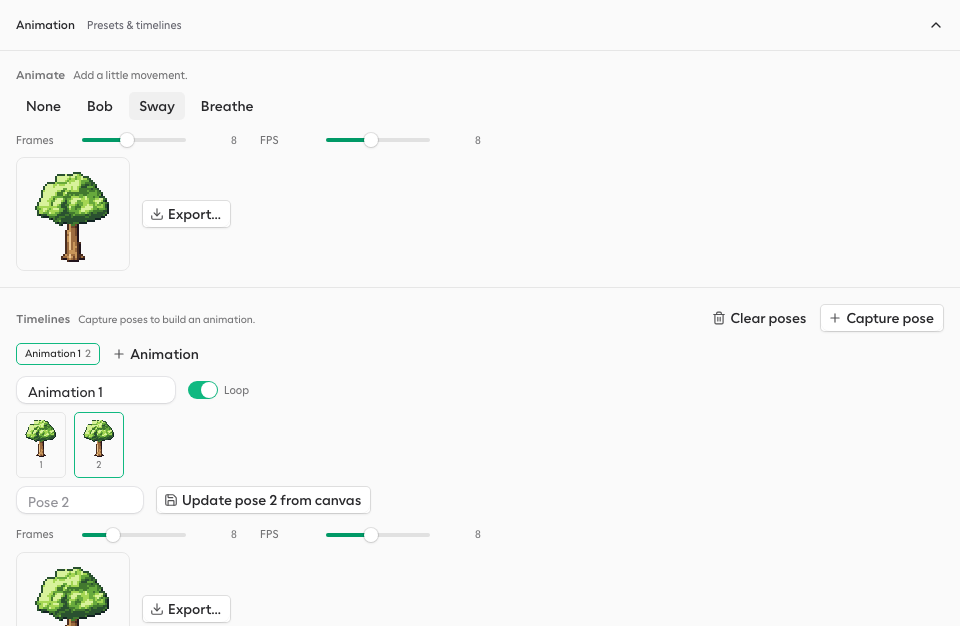
Motion presets
Presets add simple, looping movement to a sprite without any setup. They suit props, pickups and plants.
- Bob. A gentle up and down hover. Good for pickups, coins and floating items.
- Sway. A wind sway where the top moves most. Good for trees, grass and banners.
- Breathe. A soft scale pulse. Good for idle creatures and glowing objects.
Pick a preset, then set Frames and FPS. More frames give smoother motion, and a higher FPS plays faster. The preview plays the result.
Pose timelines
A timeline is a list of poses. Spritory fills in the frames between them, so you only design the key moments.
- Pose the sprite
Arrange the shapes on the canvas the way the animation should start.
- Capture the pose
Click Capture pose. The pose is added to the timeline.
- Change and capture again
Move, rotate or resize some shapes, then capture again. Repeat for each key moment.
- Tune the playback
Set the total Frames and the FPS. Turn on Loop for a cycle that repeats, such as an idle or a walk. Leave it off for a one-shot, such as an attack.
Editing poses
- Open a pose. Click a pose to load it onto the canvas.
- Update a pose. After changing a loaded pose, click Update pose to overwrite it.
- Reorder. Drag poses, or hold Alt and press the arrow keys.
- Name. Give a pose a label so it is easy to find later.
- Delete. Remove one pose, or use Clear poses to empty the timeline.
Several animations on one sprite
Click + Animation to add another timeline to the same sprite, such as idle, walk and attack. Name each one. They are saved together with the sprite, so you never need a copy per animation.
Animating light
Each pose also remembers the sprite's light direction. Turn the Light dial between captures to make light move, for example a lantern that flickers or a crystal that catches the light.
- Build the whole sprite before you capture the first pose. Shapes that exist in only some poses do not tween smoothly.
- Small moves between poses look better than big jumps. Add a pose in between if motion looks jerky.
- Pick the canvas size first. The size cannot change while a timeline has poses.
Exporting animations
The export button next to each preview exports that animation as a GIF, an animated PNG, a sprite sheet or a Godot resource. See Exporting to your game.