
Spritory exports standard files that work in any engine, plus ready-made formats for Godot and Unity. With the Jam Pass or the Agent plan, everything you export is yours to use commercially, royalty free, with no attribution. Free exports are for personal use.
Ways to export
- Quick PNG. The PNG button in the Sprite Forge downloads the current sprite at its native size, with no dialog.
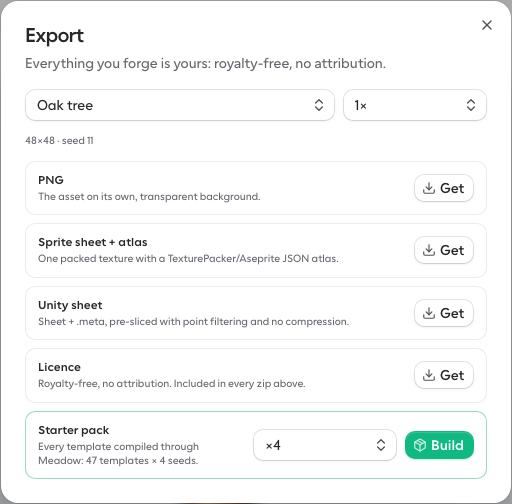
- Export dialog. The Export button opens every format and lets you pick what to export and at which scale.
- Export set. On the Saved card, exports all your saved sprites together, drawn through your current palette.
- Export animation. The button next to an animation preview exports that animation.
What to export
In the Sprite Forge, the menu at the top of the export dialog offers:
- The current sprite. Just what is on the canvas.
- Seed variants. A strip of siblings with the same structure and different textures.
- Your set. Every saved sprite, packed together.
Scale
Pick a scale to export larger files. Pixels are duplicated, never smoothed, so art stays crisp. Very large sets can be too big at the highest scales. The dialog tells you which scale to use instead.
Formats
PNG
One sprite with a transparent background. Use it anywhere.
Sprite sheet and atlas
One packed PNG with a JSON atlas in the common TexturePacker and Aseprite layout. The atlas lists where every frame sits. Most engines and frameworks can read it directly or with a small importer.
PNG frames
A zip with one PNG per frame. Handy for hand editing in Aseprite or for engines that load frames one by one.
Animated GIF
A looping animation you can drop into a devlog, a store page or a social post.
Animated PNG
The same loop as the GIF, with full transparency and no color limit.
Godot SpriteFrames
A zip with a sheet and a .tres SpriteFrames resource that already knows the speed and loop setting.
- Unzip both files into the root folder of your Godot project.
- Add an AnimatedSprite2D node.
- Drag the
.tresfile onto its Sprite Frames property, and press play.
For crisp pixels, set the texture filter to Nearest in your project settings or on the node.
Unity sheet
A zip with a sheet and a .meta file. The sheet arrives already sliced, with point filtering and no compression, so it looks right with no manual setup.
- Unzip both files into your project's Assets folder, keeping them side by side.
- Unity imports the sheet as a set of sprites, ready to drag into a scene.
License
A text file with your commercial usage rights, for the Jam Pass and the Agent plan. It is included in every zip, and you can download it on its own to share with a collaborator or publisher. Free exports do not include it.
Which formats apply
- Single sprites. PNG, sprite sheet, and Unity sheet.
- Seed variants and sets. Sprite sheet, PNG frames, and Unity sheet.
- Animations and effects. Sprite sheet, PNG frames, GIF, animated PNG, Godot and Unity.
Starter packs
The Sprite Forge export dialog can also build a starter pack: every template drawn through your current palette, with the number of seed variants you pick for each. It is a quick way to get a large, consistent base set for a new project.
Effects
In the VFX Forge, Export offers a GIF, an animated PNG, a sprite sheet or a Godot resource for the current effect. The Sheet setting in the Simulation card decides how many frames go in each row of the sheet.
A connected AI agent can export files for you. Agent exports are download links that expire after 7 days. You can always export the same assets again from your saves. See Use Spritory from your AI agent.