
Your palette decides how every sprite and effect looks: its colors, how shading falls, its outlines, and how much surface detail shows. Set it once, and everything you build follows it.


Choosing a palette
Open Style & light in the Sprite Forge. The Palette card lists the ready-made palettes and any you created. Click one to use it. Every preview in the card shows your current sprite in that palette, so you can compare them at a glance.
In the VFX Forge, pick the palette from the Style menu above the canvas. Effects use the same palettes as your sprites, so they always match.
Creating your own
There are two ways to make a palette of your own. Both need the Jam Pass or the Agent plan.
- New style from current. The plus button on the Palette card copies the palette you are using and opens it in the style editor. Ready-made palettes cannot be edited directly, so this is how you start from one.
- Extract style from image. The image button reads the colors, outlines and dithering of art you already have. See Extract a palette from your art below.
To change a palette you made, hover over it and click the pencil. The trash button deletes it.
The style editor
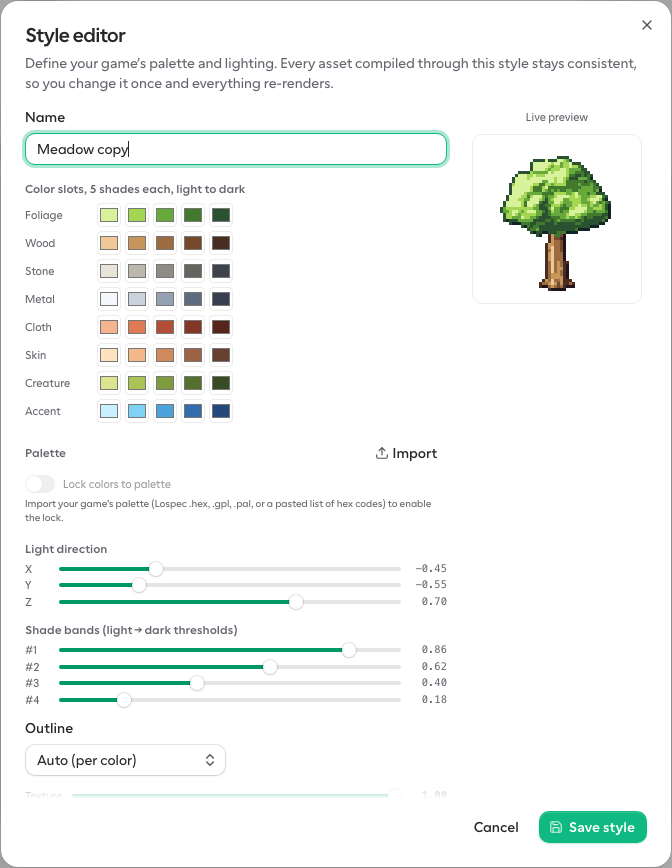
Every change redraws the live preview right away. Nothing is applied to your sprites until you click Save style.
Name
The name shown in the palette list. Name it after your game or the mood, such as "My RPG" or "Winter".
Color slots
A color slot is a family of colors for one kind of surface, such as foliage, wood, stone, metal, cloth or skin. Every shape and particle picks a slot, and your palette decides what that slot looks like.
Each slot has five shades, from lightest on the left to darkest on the right. Shapes use the light shades on the side facing the light and the dark shades on the side facing away. Click a swatch to change it.
- Keep the order. Always go from light to dark. If a middle shade is lighter than the first, shading looks broken.
- Shift the hue as you go. Good pixel art ramps usually shift hue as they darken, for example yellow-green to blue green for foliage. This keeps shadows rich instead of muddy.
- Use the accent slot for highlights. Gems, magic and glowing parts read best when their slot stands out from the rest of the palette.
Import a palette
Already have a palette, for example from Lospec? Click Import and paste it, or choose a file. Spritory reads these formats:
.hexfiles, with one color per line- GIMP
.gpland JASC.palfiles - Paint.NET
.txtfiles - A pasted list of hex codes, in any layout
Importing stores the palette with your style. It does not change any colors until you turn on the lock.
Lock colors to palette
With the lock on, every pixel Spritory draws uses a color from your imported palette. That includes the shades in each slot, the outlines, and any custom hex colors on shapes. Each color snaps to the closest palette color, and each slot keeps its light to dark order.


- Nothing is lost. Your own colors are kept underneath. Turn the lock off and they come back.
- Small palettes flatten shading. A slot needs five shades. With fewer than five palette colors, shades have to share colors and shading looks flat. The editor warns you when this happens.
- Tune after locking. If a slot snaps to colors you do not like, change its shades until they land on the palette colors you want.
Light direction
Three sliders set where your light comes from. This is the default light for every asset that uses this palette.
- X. Left to right. Negative values light from the left, positive values from the right.
- Y. Top to bottom. Negative values light from above, positive values from below.
- Z. How much the light faces the viewer. High values light shapes from the front, which gives soft, even shading. Low values skim across the surface, which gives strong shadows and more drama.


You can also turn the light for a single sprite with the Light dial. See Light on the Sprite Forge page.
Shade bands
Four sliders decide where one shade stops and the next begins, from the brightest band to the darkest. Together they control how much of each shape is lit.
- Lower values. More of each shape uses the light shades. Art looks brighter and softer.
- Higher values. More of each shape falls into the dark shades. Art looks moodier, with smaller highlights.
- Keep them in order. The first slider should stay the highest and the last the lowest, or bands will swap.


Outline
- Auto (per color). Each shape gets an outline in a darker version of its own color. Soft and readable, and a good default.
- Solid color. Every shape gets the same outline color, which you pick below. A near-black outline gives a bold, classic look.
- None. No outlines. Shapes stand on their shading alone.


Texture
Sets how strongly surface textures show, such as wood grain and leaf clumps. Zero turns them off for a clean look. The texture type itself is picked per shape.


Interior outlines
Draws outlines where one shape overlaps another, not only around the outside. Turn it on when parts blend together, such as a lid against a box.


Dither bands
Blends neighboring shades with a checkerboard pattern instead of a hard edge. It gives a retro look and smoother gradients.


Contact shadows
Darkens the area just behind a shape that sits in front of another. It adds depth where parts meet, such as the wood under the gem and rim of a shield.


Outlines, dithering, interior outlines and contact shadows follow the art style first. For example, Chunky retro always draws its own thick outline. If a setting seems to do nothing, switch to Classic pixel to see it.
Extract a palette from your art
If you already have art for your game, Spritory can build a palette from it, so new assets match what you have.
- Upload an image
Click the image button on the Palette card and drop in a PNG, JPEG or WebP image. Tilemaps and sprite sheets work best, because they contain many colors in use.
- Check the detected ramps
Spritory groups the colors it finds into light to dark ramps and shows how much of the image each one covers.
- Assign ramps to slots
Each color slot gets a ramp. Change the assignments if, for example, your green ramp ended up on stone. The previews update as you go.
- Save or refine
Pick an outline mode and dithering, then click Save style. To fine tune light, bands or single shades first, click Refine in editor.
Changing a palette later
Sprites and effects store which palette slot each part uses, not fixed colors. When you edit a palette, everything that uses it updates the next time it is drawn. Shapes with a custom hex color are the exception, since they are pinned to that color.