
The VFX Forge builds animated effects out of particles. Effects are drawn through the same palettes as your sprites, so fire, smoke and magic always fit the rest of your game.
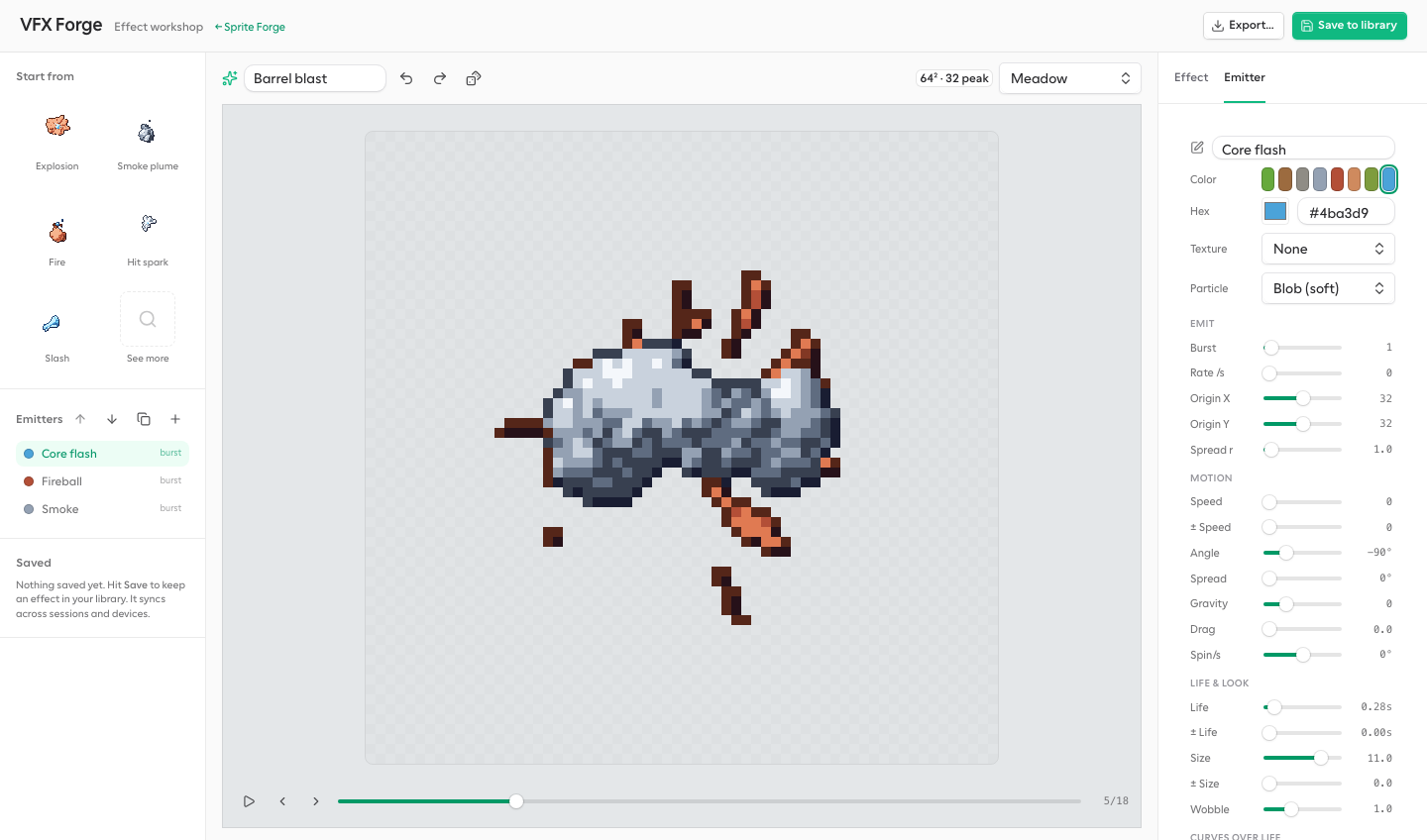
How effects work
An effect is a stack of emitters. Each emitter spawns particles, sends them moving, and changes their size and shade as they age. Spritory plays the effect for a set number of frames and draws each frame as pixel art.
Most effects combine a few emitters. An explosion might have a bright flash, a burst of fireballs and some lingering smoke, each as its own emitter.
Getting around
- Start from. Starter effects to build from. Click See more to browse the full catalog.
- Emitters. The emitters in this effect. Use Move up and Move down to change which draws on top. Solo shows one emitter on its own, and Mute hides one without deleting it.
- Canvas. Plays the effect. Pause it, step through frames, or drag the frame slider to inspect one moment. Pick the palette from the Style menu.
- Reroll seed. Same recipe, different random roll.
Effect settings
The Simulation card on the Effect tab sets up the whole effect. Emitter settings are on the Emitter tab.
- Grid. The pixel size of each frame.
- Frames and FPS. How many frames the effect has and how fast it plays.
- Loop. On for effects that run forever, such as fire or an aura. The last frame flows into the first. Off for one-shots, such as an explosion or a hit.
- Sheet. How many frames sit in each row when you export a sprite sheet.
Emitter settings that matter most
Every emitter has many settings. These are the ones that shape an effect the most.
How particles are born
- Burst. Particles spawned all at once at the start. Use it for explosions, hits and puffs.
- Rate. Particles spawned every second. Use it for fire, smoke and anything continuous. Set it to zero for a pure burst.
- Origin and spread. Where particles appear, and how far from that point they can start. A wide spread suits ambient sparkles, a tight one suits a muzzle flash.
How they move
- Speed and angle. How fast particles launch and in which direction. An angle of minus 90 degrees points straight up.
- Spread. The width of the launch cone. Small values make a jet, large values spray in all directions.
- Gravity. Positive values pull particles down, like sparks and debris. Negative values make them rise, like smoke and embers.
- Drag. Slows particles over time, so they burst out fast and then settle.
How they look
- Particle. Blob for soft, round particles like smoke and fire. Box for hard pixels like debris. Streak for particles that stretch along their motion, like sparks.
- Slash and Bolt. Strokes instead of particles: each one emitted is a whole shape. Slash is a swept crescent, bright at the leading edge, around the origin. Set its radius, sweep and swing direction, and aim it with the angle. Bolt is a jagged lightning bolt from the origin, with branches, a flicker and an afterglow. Drag the handle on the canvas to aim either one and set how far it reaches.
- Cools to. For fields, slashes and bolts: the color an emitter fades into as it cools. Wood cooling to cloth runs fire from yellow through orange and red to plum.
- Color and texture. A color slot from your palette, just like shapes in the Sprite Forge.
- Life. How long each particle lives. Longer life makes effects linger.
- Size and wobble. How big particles are, and how cloudy their edges look.
Settings marked with a plus or minus sign add random variety, so particles do not all look the same.
Particles or field
Rendering on the Style tab sets how the whole effect is drawn. Particles draws each particle as its own shaded shape in your art style. Field merges particles of one color into a single body, shaded from its dense, hot core to its thin edge, the way fire and smoke are animated by hand. Field works best with many small particles.
Curves over life
Two small graphs change each particle as it ages, from birth on the left to death on the right. Drag a point to move it, click an empty spot to add one, and double-click a point to remove it.
- Size. Grow, shrink, or pop open and fade. Smoke usually swells and then fades away.
- Tone. Moves particles toward lighter or darker shades. Sparks usually start bright and cool down to dark.
Small effects play fast in a game. Fewer, bolder particles usually read better than many tiny ones.
Saving and exporting
Name the effect and click Save to library to keep it in your library. Click Export for a GIF, an animated PNG, a sprite sheet or a Godot resource. See Exporting to your game.